
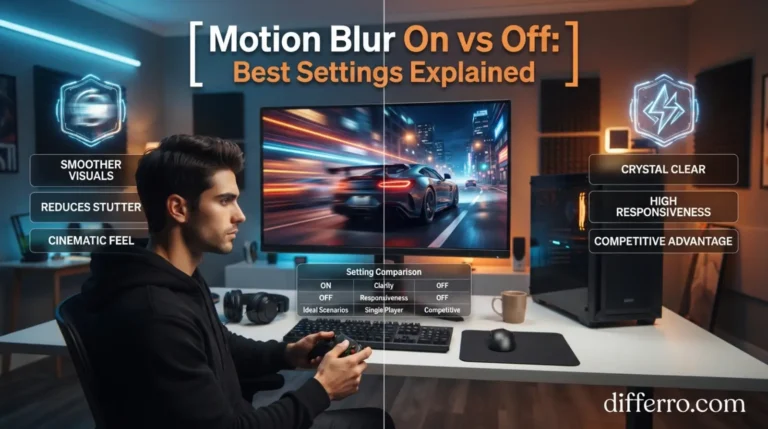
Motion Blur On vs Off is a common question among gamers who want smoother visuals and clearer movement. This setting adds a blur effect when the camera or objects move quickly. Some players enjoy its cinematic appearance, while others prefer sharp images during fast action. The best choice depends on your game, display, and personal preferences. Motion blur can make racing games and cinematic adventures feel more realistic. However, it can make enemies, objects, and surroundings harder to see in competitive games.
Many modern games let you adjust motion blur in their graphics settings. Some offer separate options for camera motion blur and object motion blur. Understanding these settings helps you choose the right experience.
This guide explains motion blur, its benefits, drawbacks, and best uses. You will learn when to turn it on or off for clearer visuals and better gameplay.
⭐ Quick Answer
Turn motion blur off for competitive gaming, sharper visuals, and clearer target tracking. Turn it on if you prefer cinematic effects or smoother-looking movement in racing and story-driven games.
Example: Keep motion blur off in competitive shooters. Try low motion blur in a racing game if you enjoy a cinematic experience.
🎮 What Does Motion Blur On Mean?
Motion blur on means the game adds a blur effect during movement. The effect may appear when you move the camera, turn quickly, or watch objects move across the screen.
Game developers use motion blur to imitate how cameras capture fast-moving scenes. It can make movement feel more natural or cinematic, especially in games designed around atmosphere and storytelling.
However, motion blur does not always improve actual performance. It changes how movement looks, and its effect depends on the game’s implementation.
Examples of Motion Blur On
Example 1: You drive a racing car at high speed. The road and surroundings become slightly blurred during fast movement.
Example 2: You turn the camera quickly in an adventure game. The background blurs briefly, creating a cinematic effect.
Benefits of Motion Blur On
- Creates a more cinematic visual experience.
- Can make fast camera movement appear smoother.
- Adds a sense of speed in racing games.
- May reduce the appearance of judder in some situations.
- Can support the intended visual style of certain games.
Drawbacks of Motion Blur On
- Can make fast-moving targets harder to track.
- May reduce perceived image clarity during movement.
- Some implementations can make players feel uncomfortable or dizzy.
- Can make small objects and distant details harder to see.
- May use additional GPU resources, depending on the game and effect.
🖥️ What Does Motion Blur Off Mean?
Motion blur off means the game stops applying its motion-blur effect. Moving objects and camera turns generally retain a sharper appearance, depending on your display and the game’s rendering.
Many competitive players prefer this setting because it helps them see details during rapid movement. It can also make aiming and target tracking feel more comfortable.
However, disabling motion blur does not automatically improve frame rates or eliminate every type of blur. Your monitor’s response time, refresh rate, frame rate, and other visual settings still matter.
Examples of Motion Blur Off
Example 1: You turn quickly in a first-person shooter. The scene remains sharper because the game no longer adds camera motion blur.
Example 2: You follow an opponent in a multiplayer game. Clearer movement may help you track the target more comfortably.
Benefits of Motion Blur Off
- Keeps the image clearer during rapid camera movement.
- Helps many players track targets in competitive games.
- Makes small visual details easier to follow.
- Avoids unwanted cinematic blur effects.
- May improve comfort for players who dislike blurred movement.
Drawbacks of Motion Blur Off
- Fast movement may look less cinematic.
- Some games may appear less smooth during rapid camera turns.
- Racing scenes may feel less dramatic.
- Certain games may show more noticeable judder at low frame rates.
🔍 Motion Blur On vs Off: Key Differences
Motion blur on adds a visual effect, while motion blur off removes that effect. Neither setting guarantees better performance across every game.
| Feature | Motion Blur On | Motion Blur Off |
|---|---|---|
| Visual appearance | More cinematic and blurred during movement | Sharper during movement |
| Target tracking | May make targets harder to follow | Often easier for competitive play |
| Racing games | Adds a stronger sense of speed | Shows road details more clearly |
| First-person shooters | Some players find it distracting | Usually preferred by competitive players |
| Story-driven games | Can enhance cinematic presentation | Gives a cleaner, sharper appearance |
| Image clarity | May decrease during rapid movement | Usually improves perceived clarity |
| Performance impact | May use extra GPU resources | May reduce some rendering work |
| Personal comfort | Can bother blur-sensitive players | Often preferred by players who dislike blur |
Important: Actual results vary by game, hardware, and implementation. Motion blur affects rendered images, while display response time and refresh rate also influence motion clarity.
🕰️ Origin and History of Motion Blur
Motion blur comes from photography and filmmaking. Cameras capture movement over a period of time, so fast-moving subjects can appear blurred.
Video game developers later adopted similar effects to create more cinematic scenes. As graphics technology improved, developers gained more control over camera motion blur, object motion blur, and other visual effects.
Today, many games offer motion blur controls. Some provide a simple on/off switch, while others let players adjust intensity or choose different blur types.
Similar Graphics Settings
- Depth of field: Blurs parts of a scene outside the focus area.
- Film grain: Adds a textured effect that resembles film photography.
- Camera shake: Moves the viewpoint to simulate impacts or movement.
- Chromatic aberration: Creates color-fringing effects near image edges.
- Anti-aliasing: Reduces jagged edges on objects.
- V-Sync: Synchronizes frame output with a display’s refresh cycle.
These settings affect different parts of the image. Turning off motion blur does not automatically disable the other effects.
🇬🇧 British English vs American English
The term motion blur has the same spelling and meaning in British and American English.
Both varieties use it when discussing video games, photography, animation, and computer graphics.
The phrase “Motion Blur On vs Off” is an informal question about a graphics setting, not a spelling difference.
British vs American English Comparison
| Feature | British English | American English |
|---|---|---|
| Motion blur | Motion blur | Motion blur |
| Motion blur on | Motion blur on | Motion blur on |
| Motion blur off | Motion blur off | Motion blur off |
| Meaning | Same | Same |
| Common usage | Gaming and graphics discussions | Gaming and graphics discussions |
🏆 When Should You Turn Motion Blur On?
Motion blur on works best when you want a cinematic appearance rather than maximum visual sharpness. Your preference and the game’s design matter most.
1. Choose Motion Blur On for Racing Games
Motion blur can make fast driving feel more dramatic. It may create a stronger sense of speed when you pass buildings, trees, or other vehicles.
Example: In an arcade racing game, low motion blur can make high-speed driving feel more cinematic.
However, turn it off if the effect hides important road details.
2. Choose Motion Blur On for Story-Driven Games
Some adventure games use motion blur to support their visual style. The effect can make camera movement feel closer to a film scene.
Example: While exploring a detailed open world, you may prefer subtle motion blur for a cinematic atmosphere.
3. Choose Motion Blur On for Personal Visual Preference
Some players enjoy the softer appearance of motion blur. Others prefer sharp images under all conditions.
Example: If a game’s fast camera movement looks harsh to you, try a low motion-blur setting.
Stop using the effect if it causes eye strain, nausea, or discomfort.
🎯 When Should You Turn Motion Blur Off?
Motion blur off is often the better starting point for players who value clarity, precise aiming, and sharp movement.
1. Turn Motion Blur Off for FPS Games
First-person shooters often require fast reactions and accurate target tracking. Motion blur can make enemies harder to follow during quick turns.
Example: In a competitive shooter, disabling motion blur helps keep the scene visually clear when you turn toward an opponent.
2. Turn Motion Blur Off for Competitive Gaming
Competitive players often remove visual effects that distract them. A clearer image can help them follow movement and recognize details.
Example: In a competitive multiplayer match, turn off motion blur before adjusting other graphics settings.
Remember that skill, frame rate, network conditions, and display quality also affect performance.
3. Turn Motion Blur Off for Better Visual Comfort
Some players find motion blur uncomfortable during extended sessions. Disabling it may make the game easier to watch.
Example: If rapid camera turns cause discomfort, switch motion blur off and test the difference.
If symptoms continue, take breaks and consider adjusting camera sensitivity or field of view.
4. Turn Motion Blur Off for Sharper Gameplay
Motion blur can soften the image during movement. Disabling it often makes the game look sharper when you turn the camera.
Example: In a third-person action game, motion blur off may help you see enemies and environmental details more clearly.
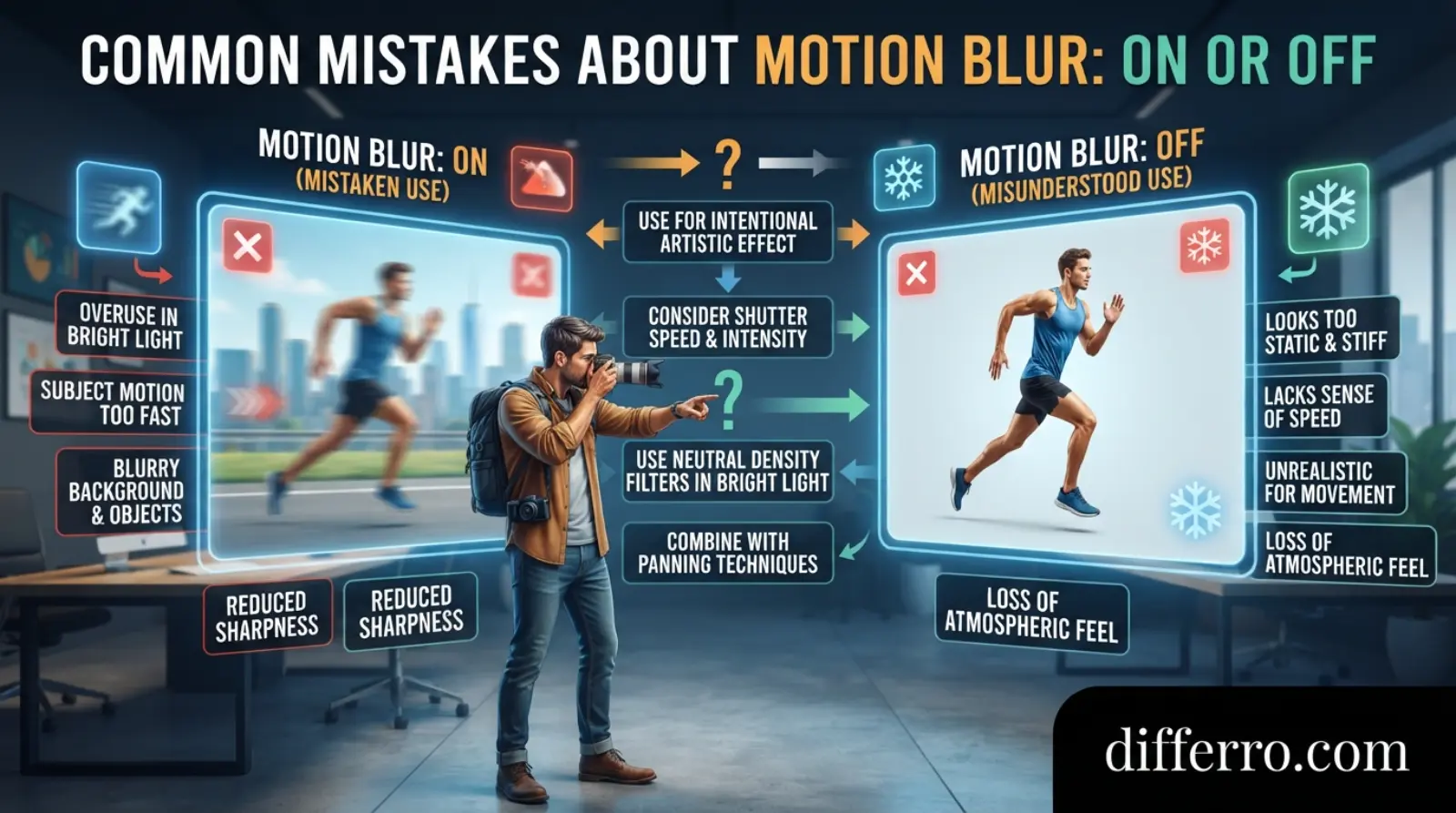
⚠️ Common Mistakes About Motion Blur On vs Off
Mistake 1: Assuming Motion Blur Always Reduces FPS
Incorrect: Turning motion blur on always causes a major frame-rate drop.
Correct: The performance cost depends on the game, hardware, and effect. Some implementations use very little additional processing.
Mistake 2: Assuming Motion Blur Off Fixes All Blur
Incorrect: Disabling motion blur makes every moving object perfectly sharp.
Correct: Display response time, refresh rate, frame rate, and other rendering effects can still affect motion clarity.
Mistake 3: Believing Motion Blur On Always Improves Smoothness
Incorrect: Motion blur always makes gameplay smoother.
Correct: Motion blur changes the appearance of movement. It does not necessarily increase frame rate or improve input response.
Mistake 4: Using the Same Setting in Every Game
Incorrect: Every game requires motion blur off.
Correct: Competitive shooters often benefit from disabling it. Cinematic and racing games may look appealing with subtle motion blur.
Mistake 5: Confusing Motion Blur With Input Lag
Incorrect: Turning motion blur off always eliminates input lag.
Correct: Motion blur is a visual effect. Input lag depends on factors such as the game, system, display, and processing settings.
Mistake 6: Ignoring Motion Blur Intensity
Incorrect: You must choose between full motion blur and no motion blur.
Correct: Some games offer intensity controls. Try a low setting if you want cinematic movement without excessive blur.
🧠 Easy Trick to Remember
Use this simple memory tip:
- Motion blur ON = cinematic movement. Choose it when you enjoy dramatic motion and visual effects.
- Motion blur OFF = clearer movement. Choose it when you want sharper images and easier target tracking.
For competitive gaming, start with motion blur off. For cinematic games, test both options and keep the setting you prefer.
🎮 Everyday-Life Examples: Motion Blur On or Off
1. Playing a Competitive FPS Game
You play a first-person shooter where enemies move quickly. You need to aim, react, and track targets during fast camera turns.
Best choice: Motion blur off. It often provides a clearer view during combat.
Related keyword: Best motion blur settings for FPS games.
2. Playing a Racing Game
You drive at high speed through city streets. You want the environment to feel fast and cinematic.
Best choice: Try motion blur on at a low intensity. Turn it off if the effect hides road details.
Related keyword: Motion blur on or off for racing games.
3. Exploring an Open-World Adventure
You explore a detailed world with cinematic scenes and camera movement. You care more about atmosphere than competitive advantage.
Best choice: Test motion blur on and off. A subtle effect may suit your preferred visual style.
Related keyword: Motion blur settings for open-world games.
4. Playing a Multiplayer Battle Game
You quickly rotate your camera to locate opponents. You need clear visuals during intense fights.
Best choice: Motion blur off, especially if you find blurred movement distracting.
Related keyword: Motion blur off for competitive gaming.
5. Gaming With Eye Discomfort
You notice discomfort during rapid movement or long gaming sessions. Motion blur seems to make the experience worse.
Best choice: Turn motion blur off and take regular breaks. Adjust other visual settings if discomfort continues.
Related keyword: Motion blur settings for visual comfort.
🌍 Google Trends and Usage Insights: USA, UK, Australia, India, and Pakistan
Google Trends measures relative search interest, not exact search volume. The observations below are general expectations, not verified live rankings.
- USA: Gamers may search for motion blur settings in popular PC and console games.
- UK: Searches may focus on graphics settings, gaming performance, and visual clarity.
- Australia: Players may compare motion blur settings for competitive and casual gaming.
- India: Gaming searches may include performance optimization for PCs, consoles, and mobile devices.
- Pakistan: Players may look for clearer gameplay, higher frame rates, and suitable graphics settings.
SEO insight: Compare “Motion Blur On vs Off,” “best motion blur settings,” and “does motion blur affect FPS?” separately in Google Trends. Use the same date range and compare each country before making claims about popularity. These suggestions reflect likely search intent, not verified country-level rankings.
Comparison Table: Keyword Variations
| Keyword variation | Search intent | Suggested article section |
|---|---|---|
| Motion blur on or off | Direct comparison | Title and introduction |
| Motion blur on or off for gaming | Gaming advice | Quick answer |
| Best motion blur settings | Settings optimization | When to use each setting |
| Motion blur on or off for FPS | Competitive gaming | FPS section |
| Does motion blur affect FPS? | Performance question | Common mistakes |
| Motion blur vs no motion blur | Visual comparison | Key differences |
| Motion blur on or off for racing games | Genre-specific advice | Racing examples |
❓ Frequently Asked Questions
1. Is “Motion Blur On vs Off” a correct phrase?
Yes. It is a common informal phrase used when asking whether to enable or disable motion blur in a game’s graphics settings.
2. What is the difference between Motion Blur On vs Off?
Motion blur on adds a blur effect during movement. Motion blur off removes that game-generated effect, usually making movement appear clearer.
3. Which motion blur setting is more popular?
Many competitive gamers prefer motion blur off because it supports visual clarity. Some players prefer motion blur on for cinematic games. Exact popularity varies by game and player preference.
4. Should I use motion blur on or off in formal gaming guides?
Use clear terms such as “Enable motion blur” and “Disable motion blur.” These phrases suit technical guides, game reviews, and graphics-setting instructions.
5. Why do gamers disagree about motion blur?
Players have different priorities. Competitive players often value sharp visuals and target tracking, while casual players may enjoy cinematic effects. Game design, hardware, and personal comfort also influence preferences.
🏁 Final Verdict: Motion Blur On vs Off?
Motion blur off is usually the better choice for competitive gaming, especially in first-person shooters. It often keeps the image clearer during rapid camera movement and helps players track targets.
Motion blur on can work well in racing games, cinematic adventures, and story-driven experiences. It adds a sense of movement that some players enjoy.
If you are unsure, start with motion blur off. Then test a low-intensity setting in games where cinematic visuals matter more than precision. Compare both options using the same scene and graphics settings.
Remember that motion blur does not automatically improve frame rates, smoothness, or input response. Your hardware, display, and game settings also affect the experience.
Choose the setting that gives you the clearest, most comfortable, and most enjoyable gameplay.
Conclusion
Motion blur on or off depends on your gaming style and visual preferences. Turning motion blur off usually helps competitive players maintain clearer visuals during fast movement. It can also reduce distractions for players who dislike blurred camera turns.
Turning motion blur on can make racing games and cinematic adventures feel more dramatic. However, strong blur may hide important details or cause discomfort for some players.
For the best results, start with motion blur off in competitive shooters. Try subtle motion blur in cinematic games if you enjoy the effect. Check whether your game offers separate camera and object motion-blur controls.
Remember that motion blur does not determine every aspect of performance. Frame rate, refresh rate, response time, and graphics settings matter too. Test both options and choose the setting that suits your needs.

Imran Lodhra is a comparison-focused content writer at Differro.com.
He specializes in creating clear, simple, and informative comparison articles.
His work helps readers understand key differences, pros and cons, and important details.
Imran focuses on accurate, practical, and easy-to-read content for everyday readers.